Method 1:
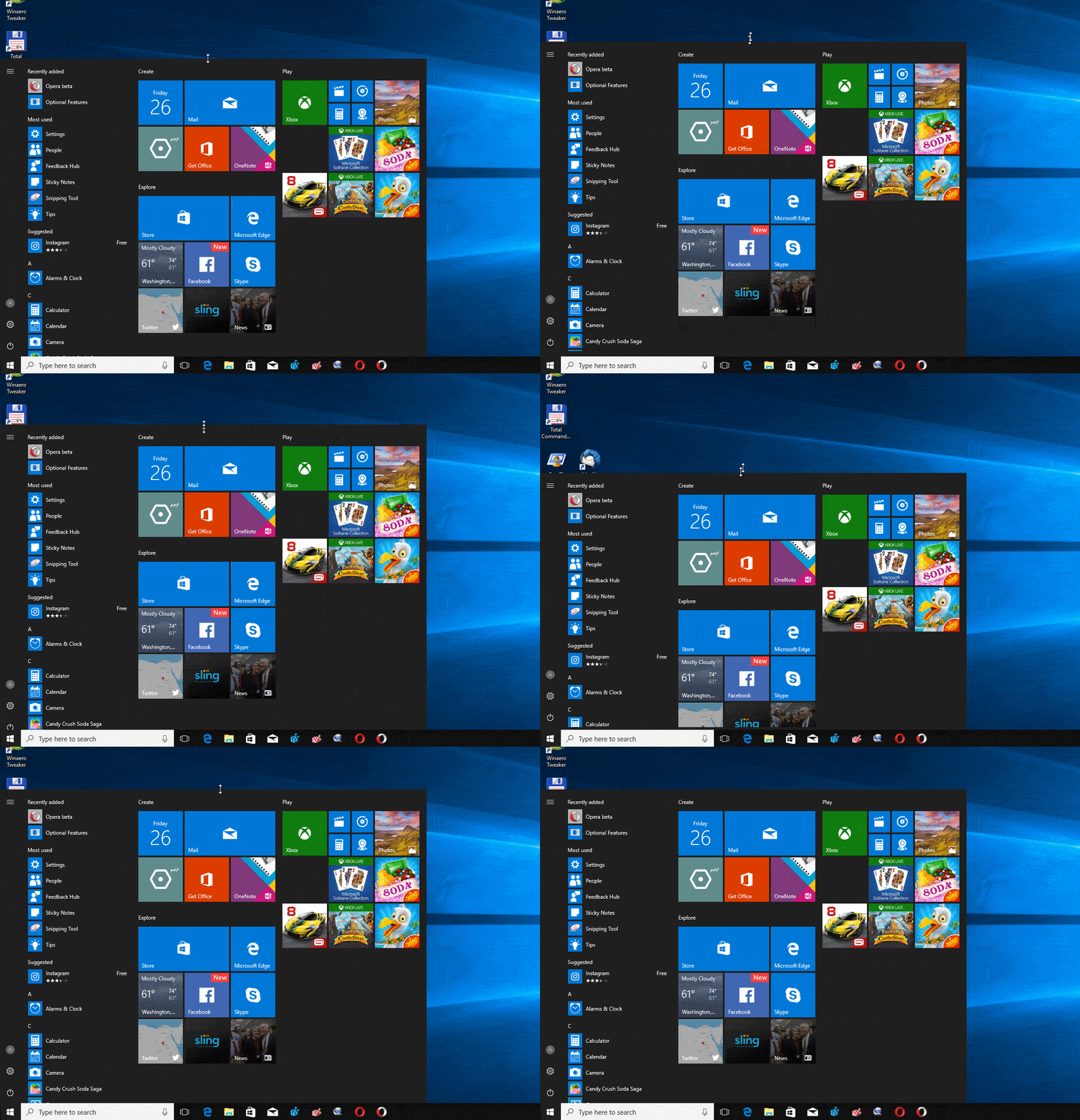
Step 1: By pressing the Win key on your keyboard or clicking the Win icon on the left-lower corner of the desktop. Then click the Settings app to access it.

OR simply right-click the Desktop and select Display settings.
Step 3: Click the Display Orientation drop-down box and choose an option. You will see this option under Scale and layout.

You can choose between any of the following options:
- Landscape mode: Choosing this will rotate your screen to the default orientation.
- Portrait mode: Choosing this will rotate your screen 270 degrees, so your screen will be vertical.
- Landscape (flipped) mode: Choosing this will flip your screen upside-down or 180 degrees.
- Portrait (flipped) mode: Choosing this will rotate your screen 90 degrees, so it is vertical and upside-down.
Press Esc on your keyboard if you want to go back to the screen orientation you had before.
Method 2:
How to Rotate Screen With Keyboard Shortcuts
You can rotate your Windows 10 PC screen with keyboard shortcuts.
Hold down and press the Ctrl + Alt + Up arrow. Holding down and pressing these keys will rotate your screen to its default position, which is the horizontal orientation.


Hold down and press the Ctrl + Alt + Right arrow. This will rotate your screen 90 degrees.

How to Rotate Your Screen on Windows 10
Here are two possible ways in which you can adjust the screen rotation of your Windows 10 device. Method 1: Step 1: By pressing the Win k...
Read Guide →