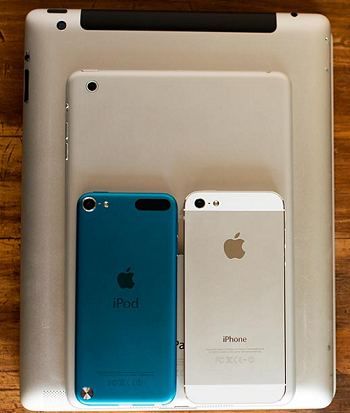
Taking a screenshot with the iPhone is a very easy task. These instructions can be used to take a screenshot on all iOS devices. Any model of iPhone, iPod touch, or iPad (as long as they're running iOS 2.0 or higher). You can't take screenshots on iPod models other than the touch because they don't run on iOS.
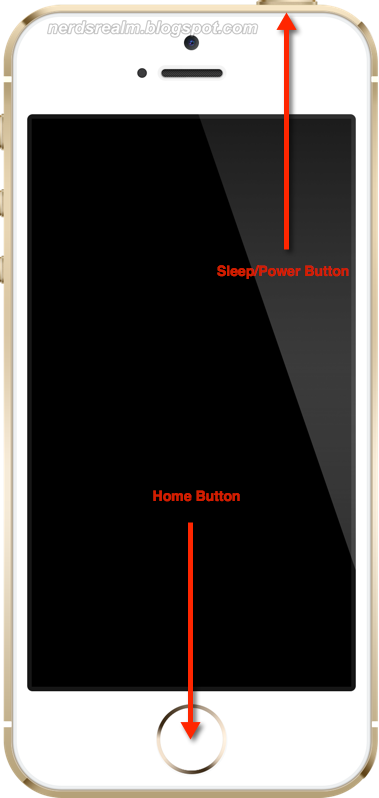
Step 1) Find the home button at the centre and the ON/OFF button at the top right of the device.
Step 2) Press the two buttons at the same time and let them go.
Success: When you press the buttons correctly, the screen flashes white and there will be the sound of a camera shutter. This means you've successfully taken a screenshot.
|
|


Screenshots are saved to your device's built-in Photos app.To view your screenshot, tap the Photos app on your device and then tap Camera Roll. In the Camera Roll, the most recent photo will be the screenshot you just took.